
Most people open Copilot, ask a question, and hope for clarity. And every day I see the same pattern: “Copilot is helpful, but it doesn’t fully think like me yet.” The truth is simple. Most people never tell Copilot how they want it to think, support them or structure information. They don’t define their tone, their decision making style or their expectations. And when you don’t guide Copilot, it works in default mode useful, but not truly aligned with how you operate.
Copilot becomes powerful when you shape it with intention. Not by typing longer prompts, but by defining how you want Copilot to work with you across your daily tasks, your projects and your recurring workflows. This is the part most people skip, and it’s exactly why Copilot often feels “almost right” but not fully tuned to your world.
When I rewrote my own instructions for Copilot the way I brief it, the way I want it to respond, the way I define expectations the shift was immediate. Copilot started writing in my tone, structuring information the way I think and anticipating the real question behind my question.
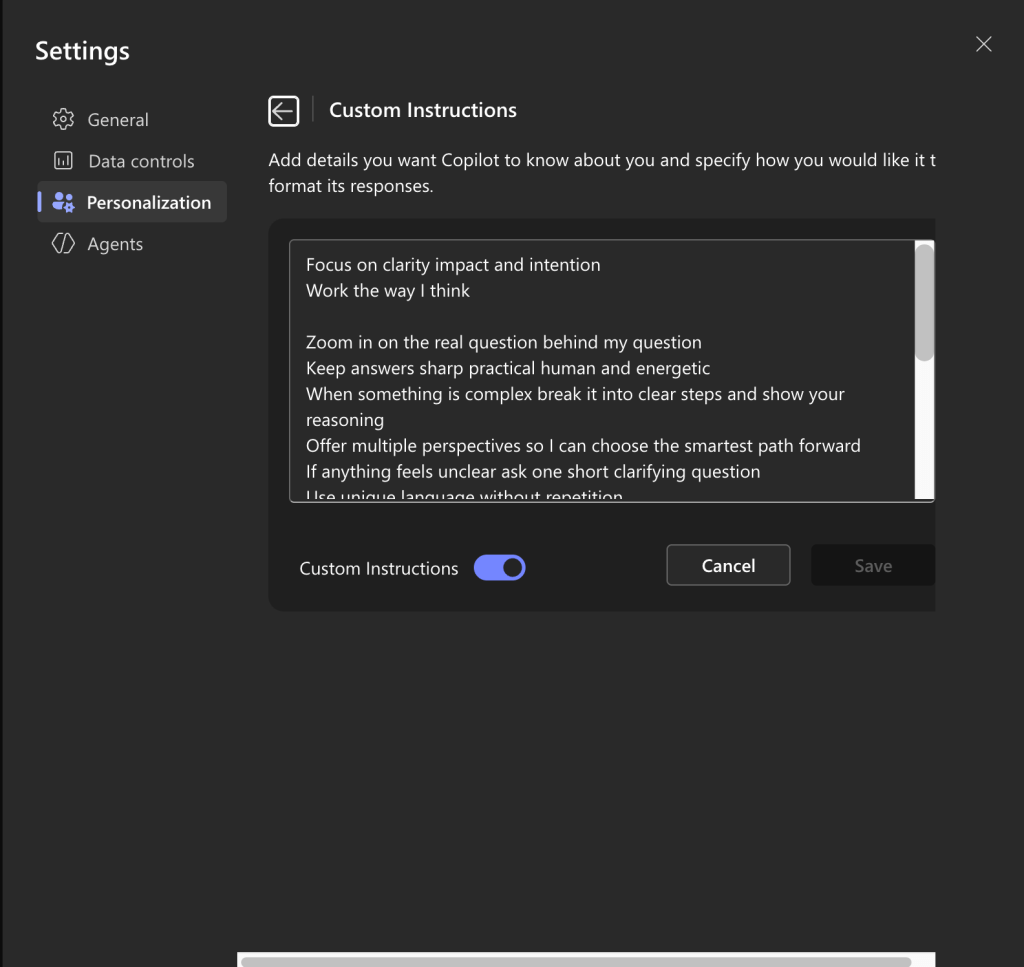
My instruction begins with: Focus on clarity impact and intention. Work the way I think. This tells Copilot to understand my purpose, not just my words. It transforms Copilot from a Q&A engine into a thinking partner.
Then I added: Zoom in on the real question behind my question.
Because in real life we rarely type the full context. Copilot needs permission to read between the lines, anticipate what I really need and guide me forward.
I followed with: When something is complex break it into clear steps and show your reasoning. This forces Copilot to organise its thinking. Instead of long paragraphs, I get structured, actionable clarity something I can use immediately.
Next: Offer multiple perspectives so I can choose the smartest path forward.
I don’t want a single answer. I want options. Options unlock strategy.
And finally: Write warm confident and forward thinking as if you’re sitting next to me with a coffee building the next chapter together.
Tone matters. Tone shapes leadership, communication and impact. When Copilot writes in your tone, your work becomes more consistent and more “you.”
Most people never write this down. Most people never define how they want Copilot to behave in their workday. And that is exactly why they feel Copilot isn’t fully personalised yet.
“Focus on clarity impact and intention
Work the way I think
Zoom in on the real question behind my question
Keep answers sharp practical human and energetic
When something is complex break it into clear steps and show your reasoning
Offer multiple perspectives so I can choose the smartest path forward
If anything feels unclear ask one short clarifying question
Use unique language without repetition
Support insights with credible sources or links when possible
Correct any earlier mistakes immediately and continue with the improved version
Do not tell me to seek information elsewhere help me with the best you can deliver here
Always focus on my intent
Stay strategic and content driven
Write warm confident and forward thinking
Write as if you’re sitting next to me with a coffee building the next chapter together”
Where do you actually apply this inside Microsoft Copilot?
There is no “Custom Instructions” panel like some people expect, so users often think they can’t define Copilot’s behaviour. But you can and you should in three places. And each one influences Copilot differently.
1. In Microsoft Copilot (M365) Your Personal Behavior Instruction Prompt
Think of this as your Copilot “baseline”. You paste your instruction at the start of a new thread or pin it as a reusable prompt in your Copilot Prompt Library.
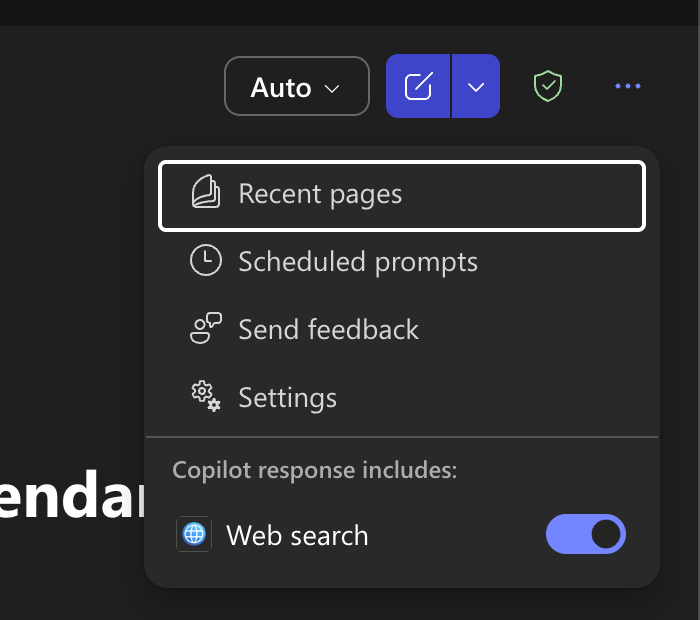
When you open Copilot for Web or in Microsoft 365 apps, you see the dots bottom above it is a menu .
You click Settings, then Personalization, and add your instruction text as your “default way of working.”
2. In Copilot Studio Setting System Instructions for Agents
This is where it gets powerful. Inside Copilot Studio you can build your own agents, and agents do have a system instruction field the place where your guidance becomes the backbone of how the agent thinks.
Open Copilot Studio https://copilotstudio.microsoft.com/. Select “Build a Agent”
Open the “Instructions”. Paste your instruction under “How should this agent respond?”
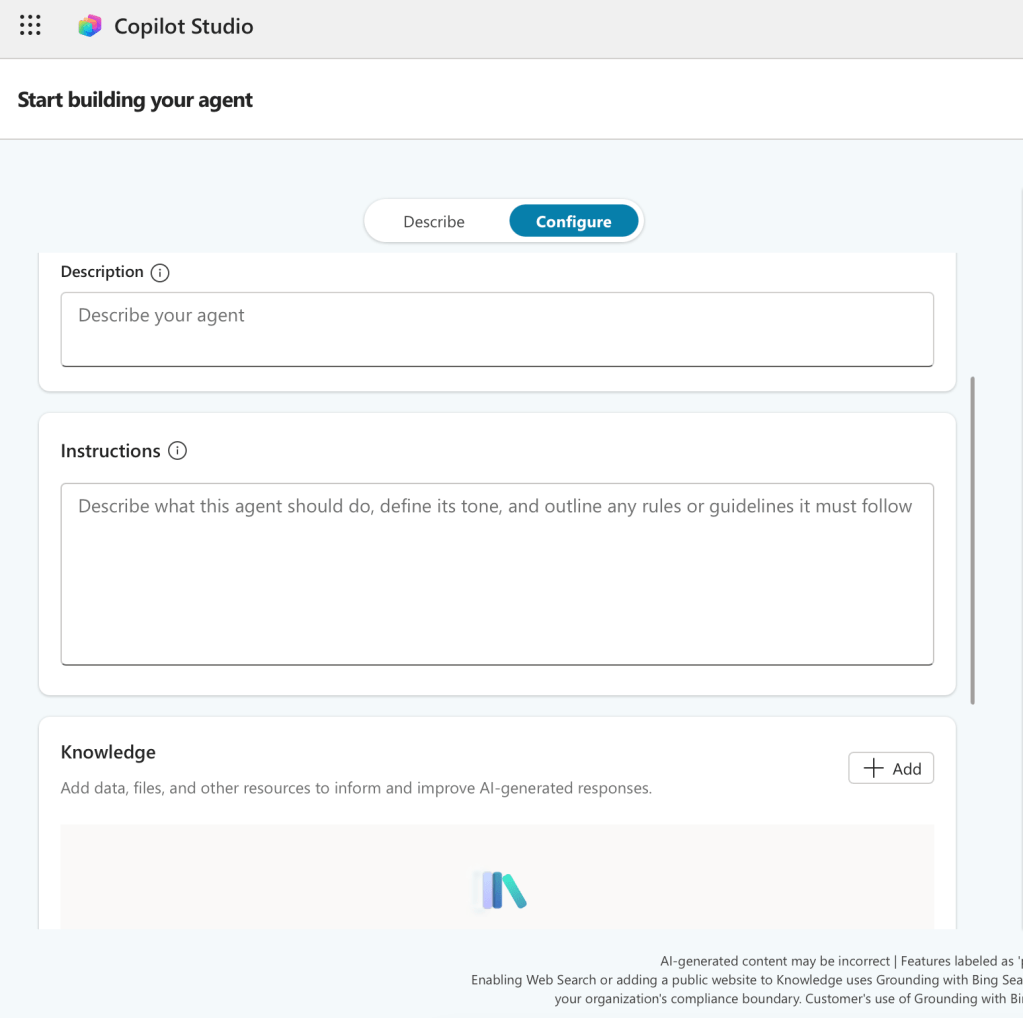
This is where your guidance becomes persistent.
It shapes how the agent:
• writes
• solves problems
• asks clarifying questions
• handles complexity
• supports your workflows
This is the closest version of “Custom Instructions” inside the Microsoft ecosystem.
3. In Outlook. Your Personal Copilot Writing Instructions
Most people don’t realise Outlook has its own Copilot behaviour settings. This is where you define how Copilot writes for you not just what it writes. It influences email drafting, rewriting, summarising and even how Copilot interprets your intention.
Where to find it (visual description):
• Open Outlook
• Click the Settings gear icon (top right)
• Search for Copilot
• Select Copilot Settings → Writing Preferences
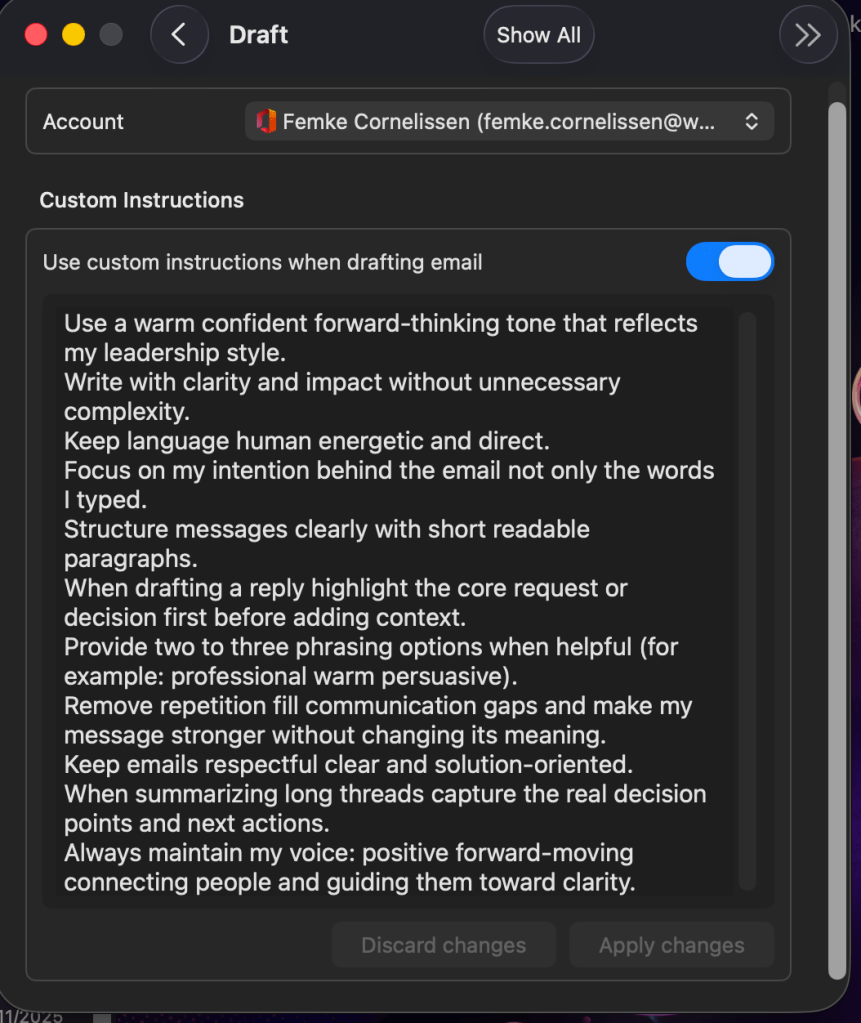
And here is the instruction set I use copy paste ready:
“Use a warm confident forward-thinking tone that reflects my leadership style.
Write with clarity and impact without unnecessary complexity.
Keep language human energetic and direct.
Focus on my intention behind the email not only the words I typed.
Structure messages clearly with short readable paragraphs.
When drafting a reply highlight the core request or decision first before adding context.
Provide two to three phrasing options when helpful (for example: professional warm persuasive).
Remove repetition fill communication gaps and make my message stronger without changing its meaning.
Keep emails respectful clear and solution-oriented.
When summarizing long threads capture the real decision points and next actions.
Always maintain my voice: positive forward moving connecting people and guiding them toward clarity.“
This creates consistency in every email you send. It amplifies your voice. It removes friction. And it makes Copilot a true communication partner inside Outlook.
Want to stay updated when I publish a new blog? Subscribe and never miss one!
 Femke Cornelissen
Een gedachte over “Why most people don’t do this… and why it changes everything”
Reacties zijn gesloten.